AI Video Upscaler

model icon
Topaz Video UpscaleUpscale an uploaded video by 1×, 2×, or 4×

Click or drag to upload a video

We accept MP4, MOV, MKV videos, up to 50MB.
1xOriginal
2x2x
4x4x
Credits required:
0 Credits
Sample Video

AI Video Upscaler Online

Features

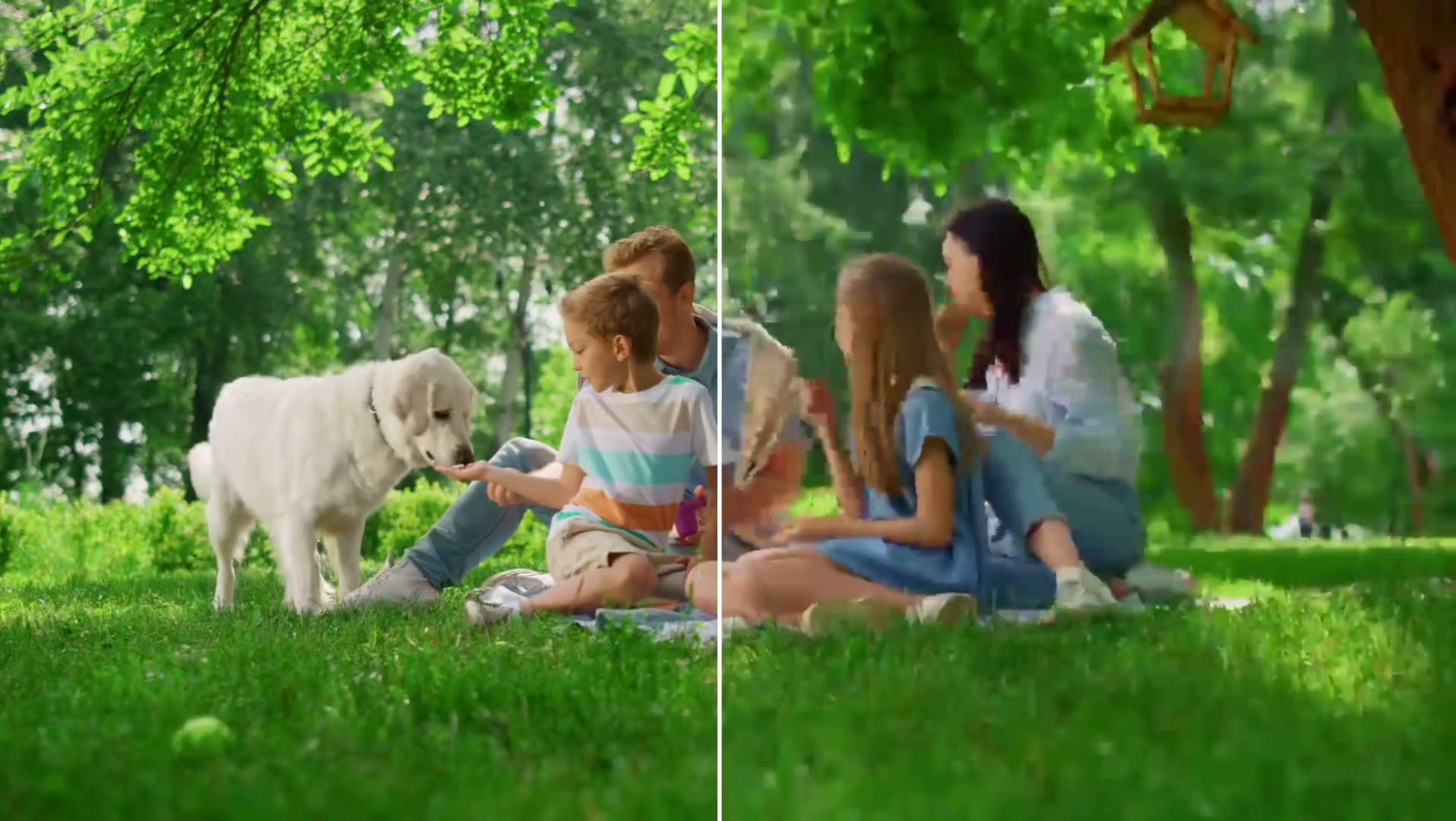
See Video Clarity Improve Side by Side

Reveal More Visible Detail in Every Frame

AI video upscaling improves perceived sharpness while reducing the soft, blocky look caused by low resolution and compression. Use the comparison demo to see the clearer result alongside the original footage.

Prepare Older Clips for Modern Screens

Increase video resolution for larger displays, social posts, presentations, and edited projects without rebuilding footage frame by frame. Choose the upscale factor that fits your source and intended output.

Prepare Older Clips for Modern Screens
How it works

How to Upscale a Video in Three Steps

1

Upload Your Video

Add an MP4, MOV, or WEBM clip to the secure uploader. The upscaler reads the source duration and prepares the available enhancement options.

Click or drag to upload a video

2

Choose an Upscale Factor

Select 1x, 2x, or 4x based on the source quality and the resolution you need. The current cost is shown before you start processing.

Upscale factor

1x
2x
4x

Topaz Video Upscale

Sharper output with preserved motion

2x
3

Create and Download

Start the AI enhancement, review the completed result, and download the upscaled video when it is ready.

LogoVideo AI EditorVideo UpscalerTopaz Video Upscale
11 days ago
Benefits

Why Use Our AI Video Upscaler

Simple Online Workflow

Upload, choose a scale, and create. There is no timeline setup, manual sharpening pass, or desktop software to configure.

Cleaner Viewing Experience

Improve the apparent clarity of soft footage so subjects, edges, and motion remain easier to see on larger screens.

AI-Assisted Enhancement

The model analyzes frames across the clip to enhance detail more intelligently than basic nearest-neighbor enlargement.

Ready for Your Next Edit

Download the result for use in social content, presentations, archives, or a larger video editing workflow.

FAQs

AI Video Upscaler: Frequently Asked Questions

What does an AI video upscaler do?

An AI video upscaler increases video resolution while analyzing image detail across frames. It can make low-resolution or compressed footage appear clearer than a basic resize, though the result still depends on the quality of the source clip.

Which upscale factors are available?

The upload workflow supports 1x, 2x, and 4x options. Available choices and pricing are shown in the editor before processing.

Which video formats can I upload?

The current uploader accepts MP4, MOV, and WEBM videos. Your browser and the selected model must also be able to read the clip's underlying codec.

Can I upscale an existing generated video?

Yes. Compatible completed Kie jobs can be selected through the Previous Kie Job option, while other clips can be uploaded directly.

Will upscaling restore every missing detail?

No upscaler can recover information that was never captured. AI can improve perceived sharpness and reduce visible artifacts, but heavily blurred or damaged footage may still have limitations.

How long does video upscaling take?

Processing time varies with clip length, upscale factor, source resolution, and provider load. The result appears in your generated media panel when processing completes.

Can I try the AI video upscaler for free?

You can use any available video model on your current account. A job can start whenever your account has enough credits for the selected clip and options.

Upscale Your Video Online

Upload a clip, choose an enhancement level, and create a clearer high-resolution result with AI.